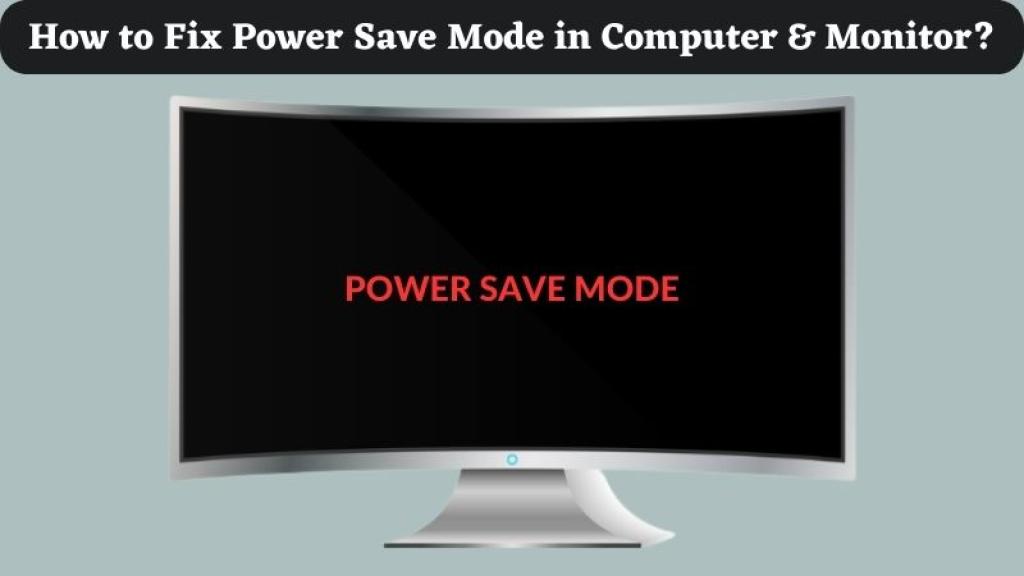
A common issue many computer users encounter is the monitor unexpectedly entering power-saving mode. This can be frustrating, as it may prevent you from using your computer or cause interruptions during important tasks. Fortunately, this issue is often easy to fix. In this article, we'll go over four key steps you can take to resolve the "monitor going into power-saving mode" problem.
Sometimes, the power-saving mode issue is caused by the computer's power settings rather than the monitor itself. Here's how to check and adjust the power settings on both Windows and macOS:
For Windows:
Open Settings by pressing the Windows key and typing "Settings."
Click on System, then select Power & sleep.
Under Screen, adjust the time it takes for your screen to turn off by selecting a longer period or setting it to "Never."
Scroll down to Additional power settings on the right side, then click on Change plan settings under the selected power plan.
Select Change advanced power settings, expand Display, and adjust the settings for Turn off display and Sleep to your desired preferences.
For macOS:
Go to the Apple Menu and click on System Preferences.
Select Energy Saver (or Battery in newer versions).
Adjust the sliders for Turn display off after to a longer time or set it to Never.
Make sure to uncheck options like Put hard disks to sleep when possible and Enable Power Nap to prevent the system from unnecessarily entering power-saving mode.
These adjustments ensure that your computer doesn't trigger power-saving mode too early or too frequently.
Step 2: Update Graphics Drivers
Outdated or corrupted graphics drivers can also cause your monitor to go into power-saving mode, especially if the graphics card isn't properly communicating with the display. Updating your graphics drivers can solve this problem.
For Windows:
Right-click the Start button and select Device Manager.
Expand the Display adapters section and right-click on your graphics card.
Select Update driver, then choose Search automatically for updated driver software.
Follow the prompts to install the latest driver.
For macOS:
macOS generally updates drivers automatically, but you can make sure your system is up to date:
Open the Apple Menu and choose System Preferences.
Select Software Update and check for any available updates. Install them if necessary.
Once your drivers are updated, restart your computer and see if the issue persists.
Step 3: Verify Monitor Cable and Connection
Loose, damaged, or improperly connected cables can cause the monitor to go into power-saving mode, as the display signal may be interrupted. Check the cables and connections to ensure they are secure and functioning correctly.
Power Cable: Ensure the power cable is firmly connected to both the monitor and the power outlet.
Video Cable: If you're using HDMI, DisplayPort, VGA, or DVI cables, make sure the connection is tight on both ends. You may also want to try a different cable to rule out a defective one.
Graphics Port: If you're using an external graphics card, check that the cable is properly connected to the GPU. If you're using an integrated GPU, verify the connection to the motherboard.
After checking the cables, restart your computer to see if the issue is resolved.
Step 4: Reset the Monitor to Factory Settings
If the above steps haven’t resolved the issue, resetting your monitor to its default factory settings can help eliminate any potential configuration issues.
On-Screen Menu: Most monitors have an on-screen menu (OSD) that can be accessed by pressing the buttons on the monitor itself.
Navigate to the Settings or Setup section of the menu, and look for an option to Reset or Restore Factory Defaults.
Confirm the reset and restart your monitor.
This should clear any problematic settings that might be causing the power-saving mode to trigger incorrectly.
Finding the right tenant is one of the biggest challenges landlords and property agents face. A bad tenant can lead to unpaid rent, property damage, and legal headaches, while a good tenant ensures a smooth and stress-free rental experience. That’s where Tenanthub.co.za comes in—a revolutionary platform that allows landlords and agents to review tenants, access past ratings, and make informed deci